A compact free menu bar app that helps your MacBook spend less time at high charge, gives you a quick travel top-up button, and keeps everyday charging simple.
Why I made this app
As a professor of battery chemistry, I get annoyed when my MacBook casually spends long stretches at battery conditions that are convenient in the moment but not especially kind to the cells over time.
Battery Throttle can help you avoid four main behaviors that are detrimental to your battery's health:
Sitting at too high of a charge while plugged in for long periods. You can avoid the damage this racks up by selecting a lower charge-limit target using either this app or via your System Settings.
Forcing your battery to discharge or charge to keep as close as possible to that charge-limit target. The OS wears your battery by arbitrarily forcing extra cycling to keep as close as possible to this value. BatteryThrottle instead lets your charge "float" wherever it happens to land, as long as it's within 10% of your targeted setting.
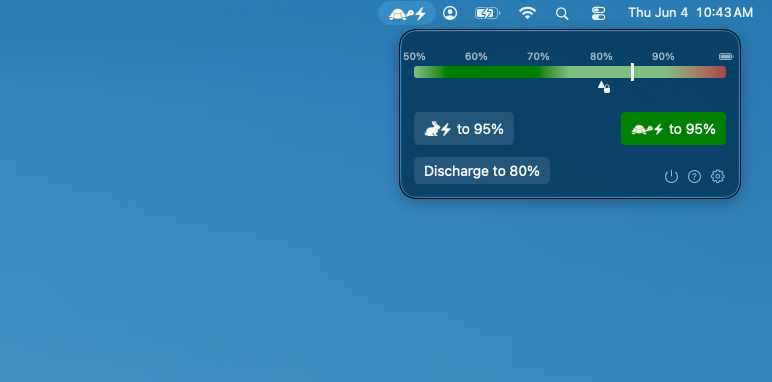
Charging at too fast of a rate. MacOS takes a one-size-fits-all-occasions approach which means a maximum charge rate. Battery throttle interrupts that where possible, and instead forces a gentle-charge mode as indicated by the menu-bar icon changing into a turtle.
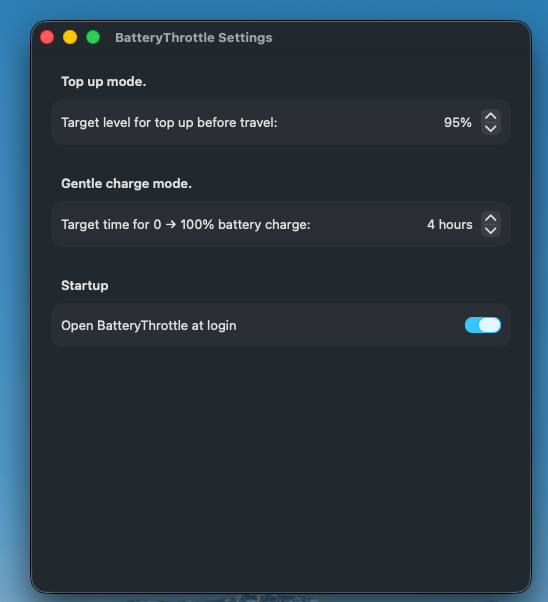
Quick top-up functions that take you to 100%. It's pretty rare for me to head out the door and into a situation where 95% charge wouldn't be enough but 100% would be. So why have the top-up button *always* fixed to 100%? BatteryThrottle lets you do a one-click top up to whatever level you like. Right from your menu bar.
BatteryThrottle is free stripped-down app that lives in your menu bar and solves all these problems using (at most) one-click actions on your menu bar.
Three Core Modes
Charge Limiting: →
Pick a ceiling of 80, 85, 90, or 95% and keep your MacBook from drifting higher during long plugged-in sessions. Uses a slow charging speed that is more gentle on your battery (turtle-charge icon) whenever possible.
Top Up For Travel: → 95% or → 95%
When you know you are about to unplug, use one click to top up to your preset travel level without changing your everyday ceiling. Choose fast or slow charge modes to suit your plans.
Discharge Mode:
MacOS actually has a built-in charge-limiting mode that you can find a few menus deep. It forces your battery to discharge downward to the charge limit you manually set, but that is actually adding wear to your battery. By default, BatteryThrottle will let your charge level "float" wherever it happens to land when you first plug in. If you know that you'll be plugged in for more than a couple of days, the aging from sitting at high voltage starts to outweight that from the extra discharge cycling. Click this button to let it drift down toward your locked in level.
What makes it useful
BatteryThrottle focuses on the two actions that cover most real use: a lower everyday cap and a quick temporary top-up. The interface stays compact, the settings stay discrete, and the menu bar control stays fast to use.
It also keeps the chemistry perspective front and center. You do not need to micromanage every cycle, but spending less time parked at the top of the range is still a sensible habit if your MacBook lives on a charger.
You could accomplish the same tasks this app performs using just the OS tools, but you would have to repeatedly surf through layers of menus to manually adjust settings if you want to solve the above four problems. Battery Throttle does most of it automatically and the only time you need to click on something (to top-up charge), the button is right up front on your menu bar.
 →
→